NOTE: Electronic Signature Capture is only available on the handheld for stores that have had ESC enabled in the master stores database. Rollout to all stores is planned for September/October 2026. |
Electronic Signature Capture enables you to have a store receiver sign the screen of the handheld. You can then print their invoice with their signature present and skip printing a copy for Choice Books records.
The Process
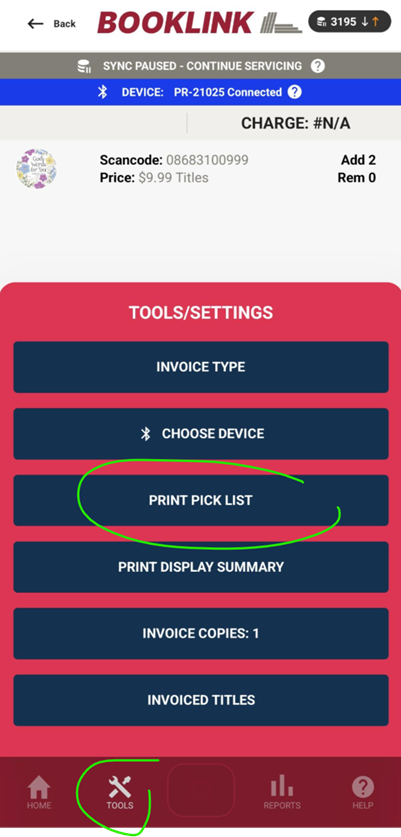
- Optional: Print Pick List
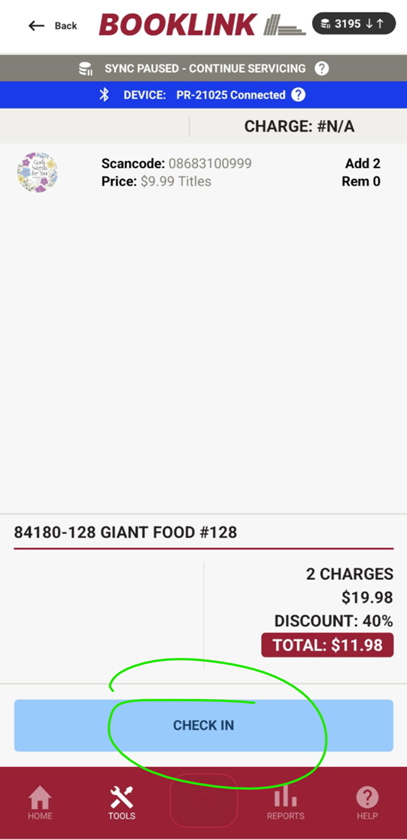
- Check-In to generate invoice number
- Receiver Signs Screen
- Print Invoice
- Take Pictures of Proof Of Delivery (when store provides POD)
- Working with DEX
Printable Pick List
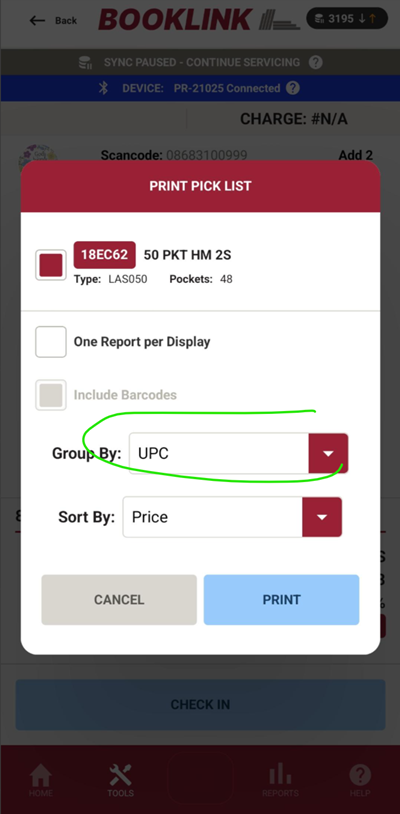
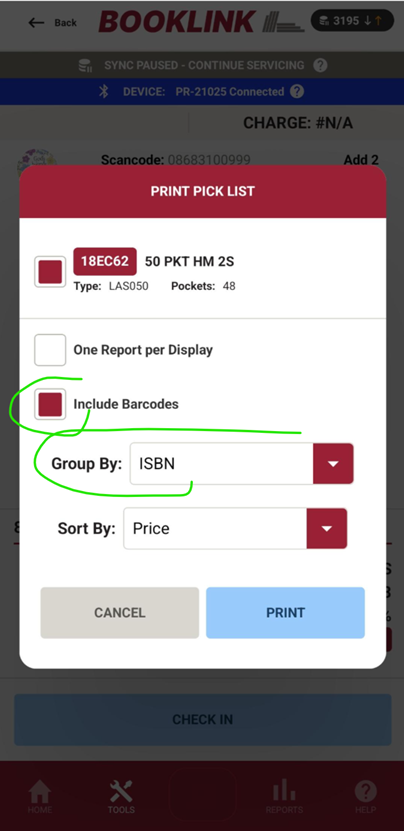
If you want a paper to work from for checking your delivery or the receiver wants a paper to work from for checking in, you can print a pick list.
You can print a pick list from Tools > Print Pick List on the View/Print Invoice screen. For PricePoint stores you want to use the Group By UPC option, for IST you can use the group by ISBN.
Check In: Get an Invoice Number
Since invoice printing is what used to create the invoice number and many receivers need an invoice to start the check-in process, you now get an invoice number by using the check-in option on the View/Print Invoice screen
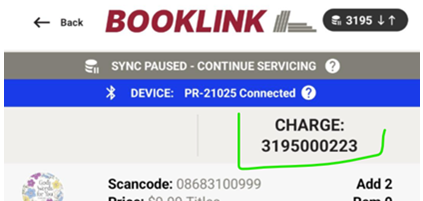
Sign and Print Invoice(s)
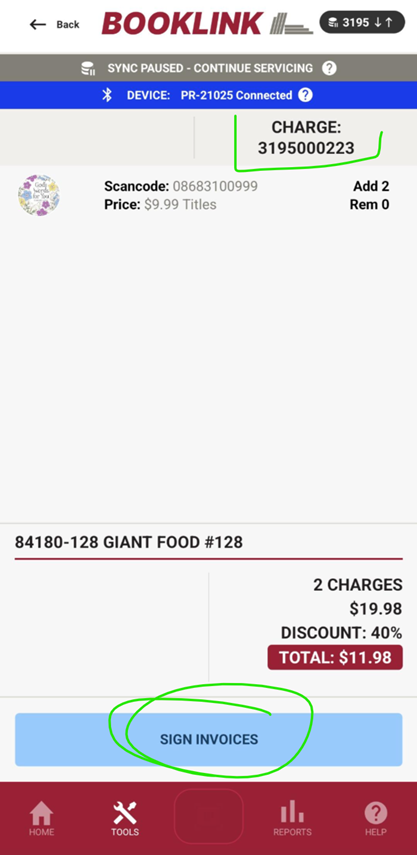
Once you are ready, you can poke the Sign Invoices button to get the signing process going:
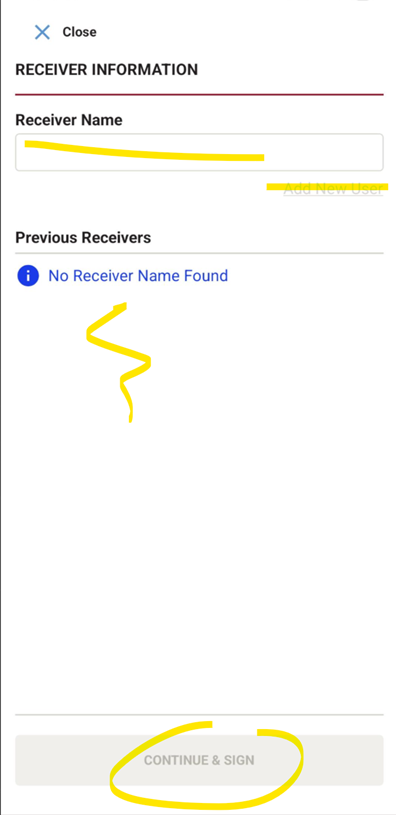
You need to add a typed version of the receiver’s name. If you have done so already, their name will be in the list in the middle of the page. Press Continue & Sign at the bottom
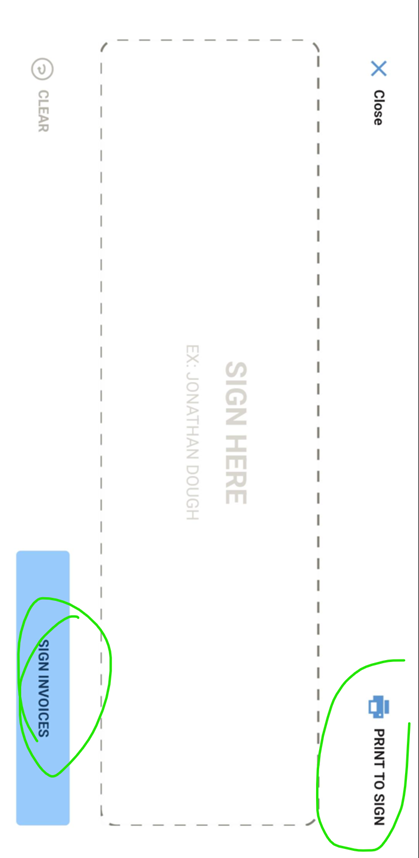
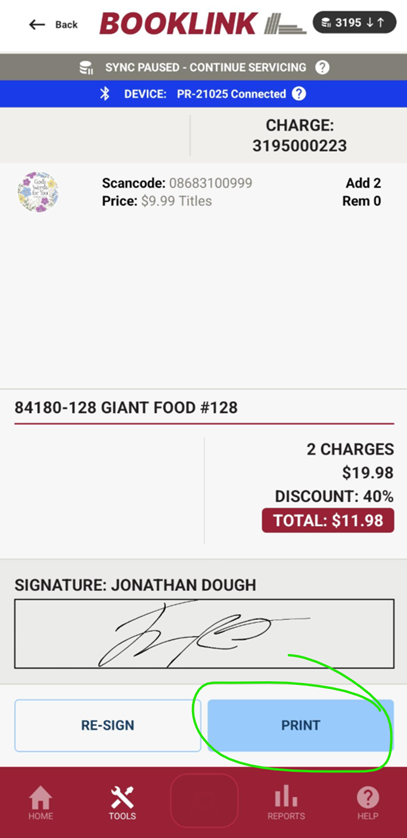
On the signing screen, they sign the middle of the screen then you tap Sign Invoices button.
NOTE: If they refuse to sign your handheld you can just print normal invoices with the top right “Print to sign” option in the top right of the signature screen
Once signed, tap the print button to print
Proof of Delivery (POD) - Image Capture
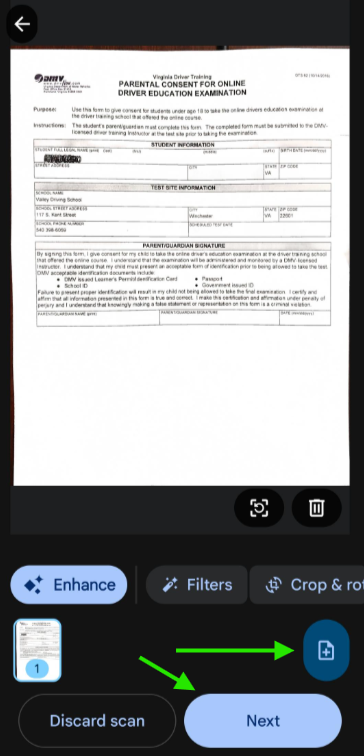
If the store provides you a printed Proof of Delivery (POD) document, take a picture of it in the POD section of the Post Servicing Images.
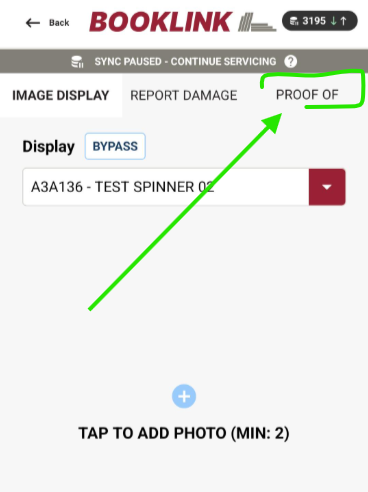
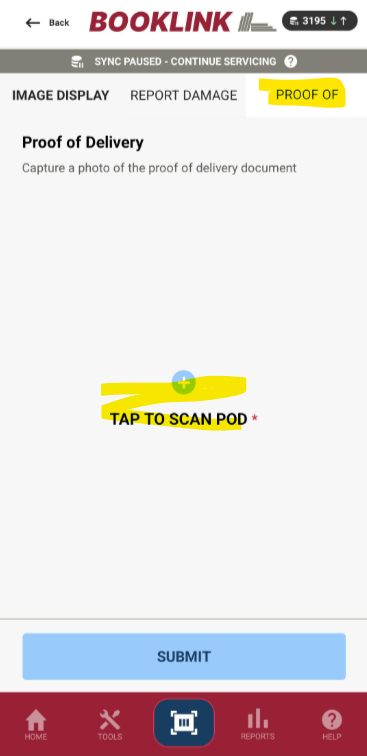
POD scanning uses the auto-capture model, so line up the page and the camera will snap the picture:
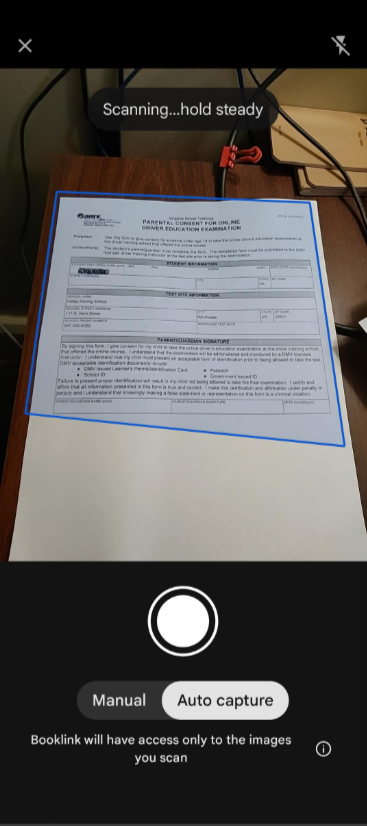
You can add extra pages with the + button in the bottom right and finish up with the Next button
Working with DEX
With DEX you will need to print invoices before you are able to process the DEX transmission.
Just write DEX on the signature screen and print the invoice. Capture any DEX paperwork printout form the store with the POD capture.
You do NOT need to save the printed invoice.
Was this article helpful?
That’s Great!
Thank you for your feedback
Sorry! We couldn't be helpful
Thank you for your feedback
Feedback sent
We appreciate your effort and will try to fix the article