BLAM 1.5.45 and higher requires that the user take pictures of every display before and after servicing. There is a bypass option for situations where a photo cannot be taken. How to bypass pictures
This article is intended to help you with understanding how to identify which elements of a servicing are incomplete, so that you can finish the servicing and unload it on your own. For the most part, the point at which you cannot proceed indicates where the incompleted step can be found. Below are some common scenarios, and what they mean.
Complete
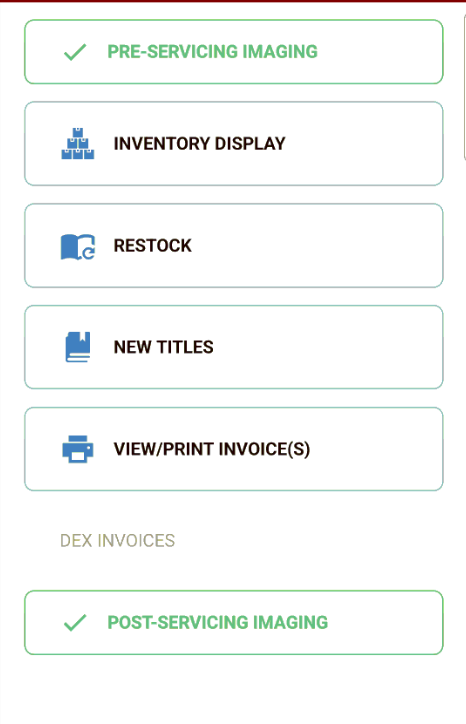
Completed servicing. This is what we are trying for. Note that the pre-servicing and post-servicing tabs have a green check mark beside them. This indicates that all servicing steps have been completed. (This was not a DEX store; hence the greyed out DEX tab.)
Incomplete
1. Scenario: Missing pre-servicing images.
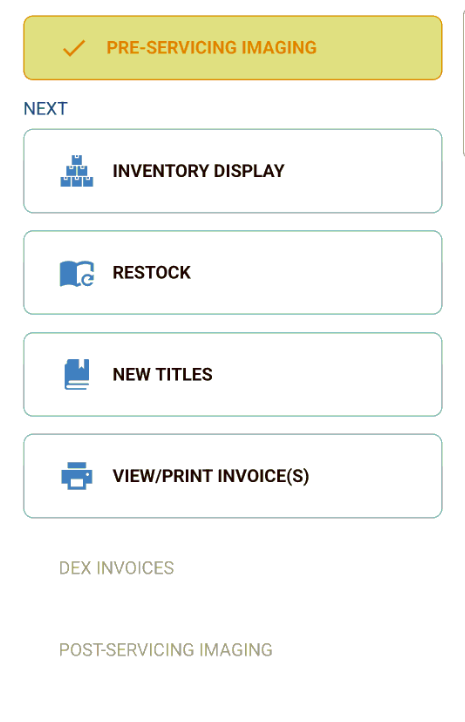
Note that the pre-servicing tab has a yellow check mark, and that post-servicing is unavailable. This indicates that there are multiple displays in the store, and one or more of them have not had pre-servicing images captured or bypassed. You must capture or bypass the pre-servicing images for all displays before you can proceed to post-servicing images.
2. Scenario: Need to print invoices or there are unresolved restock items.
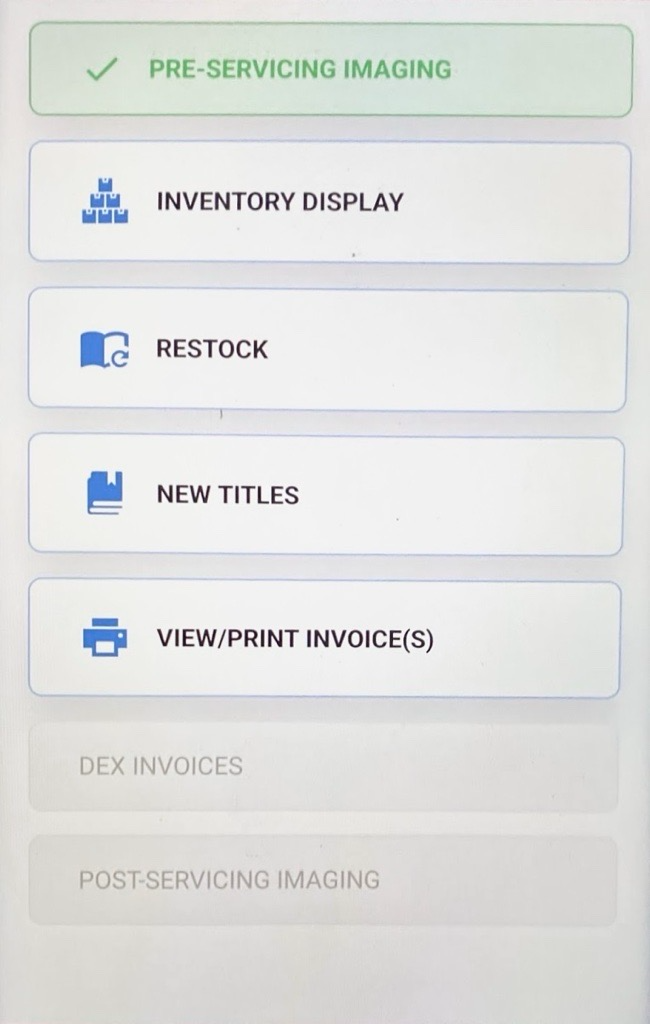
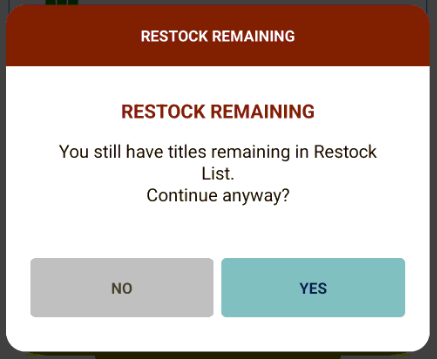
Note that the pre-servicing tab is green, but the post-servicing tab is greyed-out. This means that the invoice needs to be printed (or reprinted due to modifications). If you have already printed the invoice, then this means that additional modifications were made and a reprint is required, or that there was a popup message that you ignored about items in your restock list that need to be cleared.
Special Scenario for SBT stores: You must inventory all product for all displays in an SBT store for shrink analysis purposes. You will encounter the picture below if you have missed scans on any display in the store. Be sure to inventory all displays and process missed scans.
This is the message about items in the restock list. If you press yes to this message, you will be able to print the invoice, but you will not be able to complete the servicing until these restocks are dealt with.
3. Scenario: Missing all post-servicing images.
Note that the pre-servicing tab is green, and none of the tabs are greyed-out, but there are no checkmarks beside post-servicing imaging. This indicates that no post-servicing images have been captured. You must capture all the post-servicing images or bypass them to finalize the servicing.
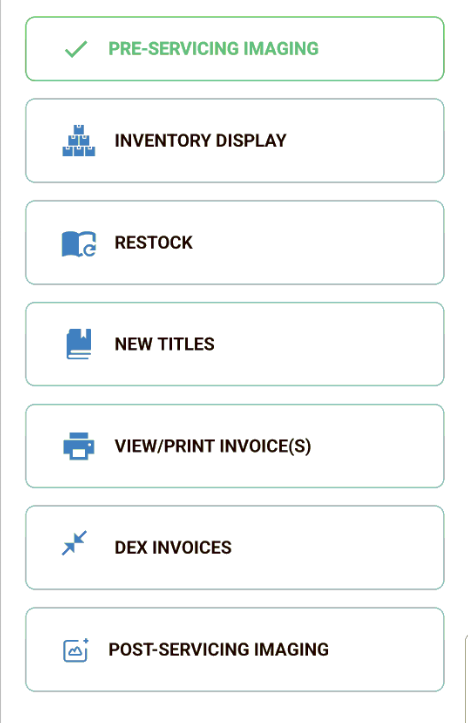
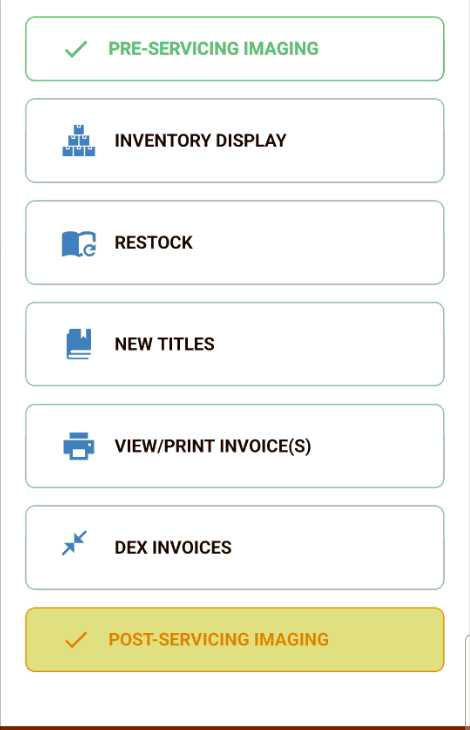
4. Scenario: Missing some post-servicing images.
Note that the post-servicing tab has a yellow check mark. This indicates that there are multiple displays in the store, and one or more of them have not had post-servicing images captured or bypassed. You must capture all the post-servicing images or bypass them to finalize the servicing.
5. Scenario: DEX transmission incomplete.
This is for DEX stores only. Complete DEX transmission or bypass it. How to bypass DEX
6. Scenario: SBT store and not all displays have been inventoried.
All displays must be inventoried at every visit to an SBT store, even if you are only "servicing" one of them such as a seasonal table. If you fail to inventory all displays, our shrink analysis will be rendered useless for an extended period of time. The HH will not allow you to complete the servicing without every display being inventoried.
Was this article helpful?
That’s Great!
Thank you for your feedback
Sorry! We couldn't be helpful
Thank you for your feedback
Feedback sent
We appreciate your effort and will try to fix the article