Applies to BookLink (Android) Mobile [BLAM] 1.5.45 and newer
Pictures of the displays are captured at the beginning and end of the servicing process. This gives a browsable view of what displays looked like when sold down and what they looked like when they were stocked up after a servicing.
When do I take pictures?
At the beginning of servicing a display and at the end of servicing a display
How many pictures do I take?
You need to take at least two pictures at the beginning and two at the end.
Make sure all sides of the display are visible.
You should also take one picture from wider-angle that give a sense of where the display is positioned in the store.
*Your District Manager may have more specific details they would like captured; make sure to check with them.
Why am I taking pictures?
By taking pictures before you do anything to the display, you are creating a record of what the store looks like to the last customer who saw the display before servicing.
By taking pictures after you service you are creating a record of what the first customer to shop it after servicing will see.
These records will give your supervisors, Sales Team members, and others opportunities to see what displays look like in the real world and help inform decisions.
Note: You must take pictures of each active display in the store. If you are only servicing one display in a store that has multiple active displays, you will need to choose Bypass on the other displays in the Servicing Imaging. If you are tidying the other display you should go ahead and take pictures of it to show the view of it at the date you were at the store. |
The Process:
When you enter a store to service on the handheld you will have to take pictures of the display before you can move on to inventory processes.
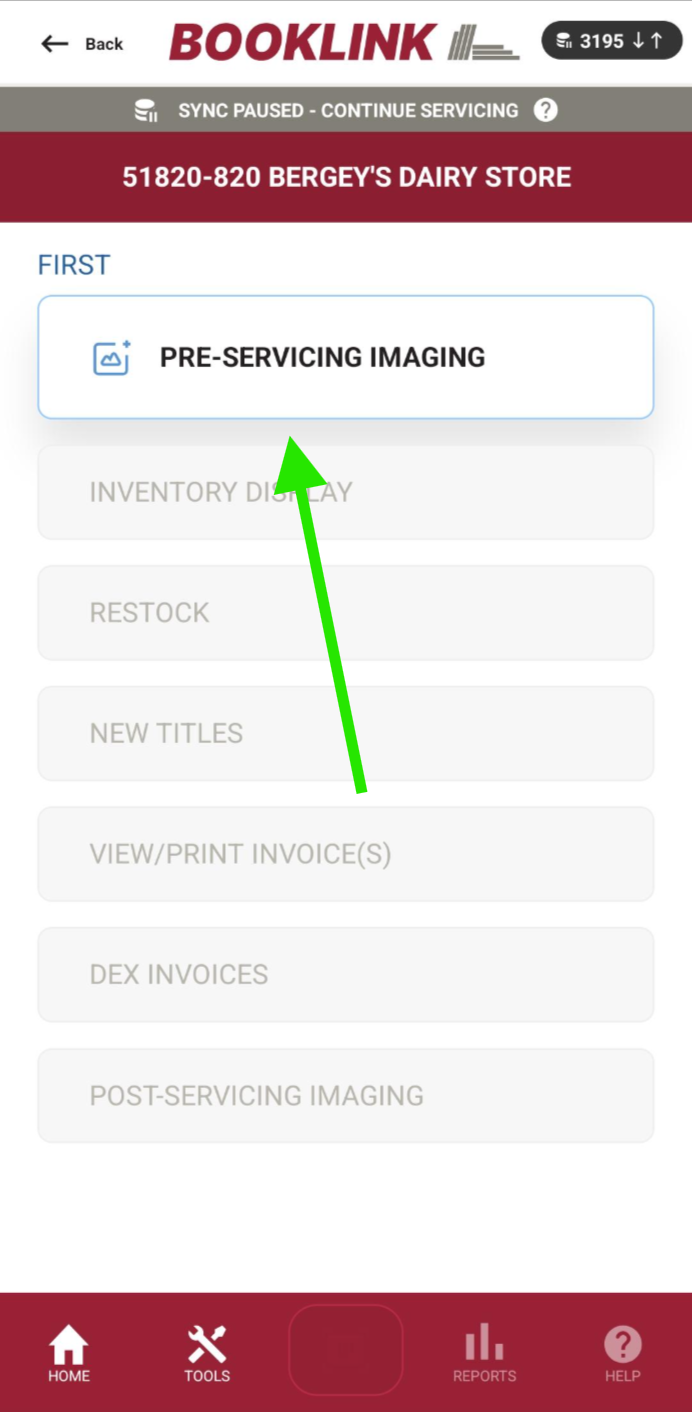
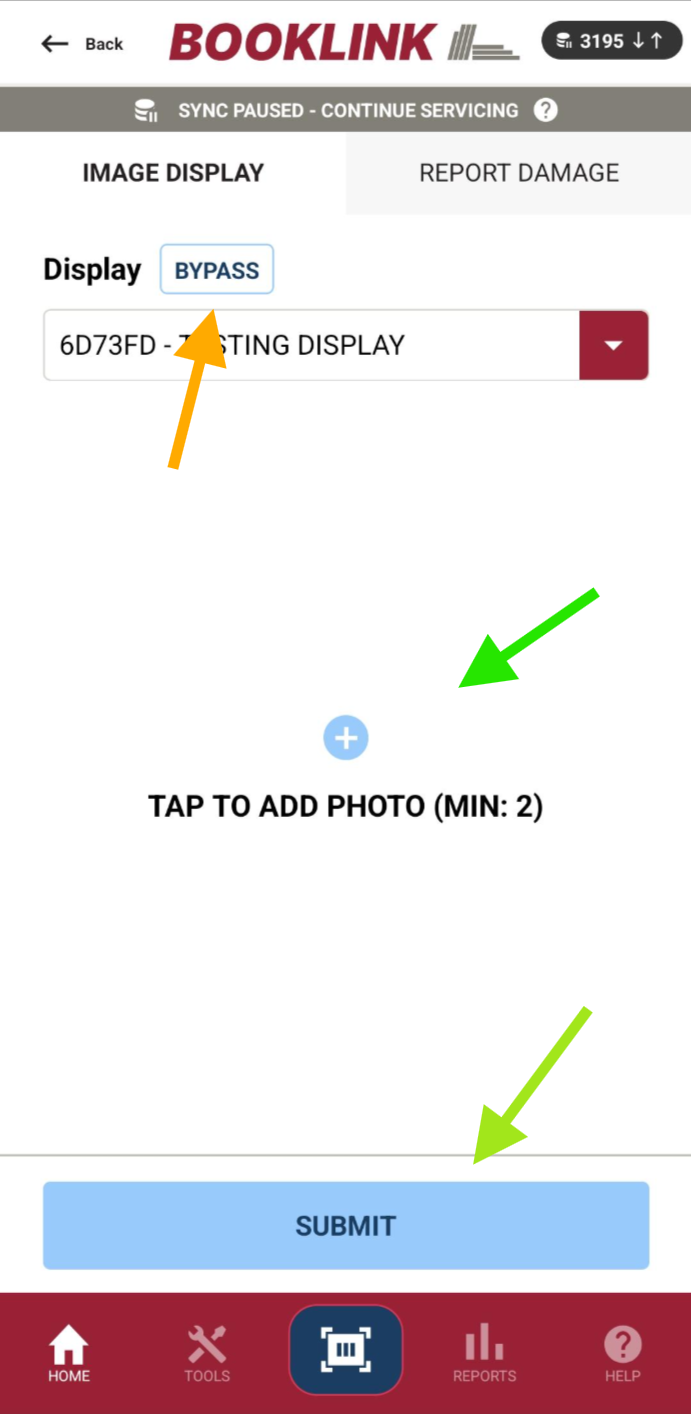
Tap the middle area of the screen to open the camera.
Take at least two pictures of the display (capturing a view of all sides of the display).
Press Submit when you are happy with your pictures.
Note: If you cannot take pictures right now, tap the Bypass button and choose a reason for bypassing from ther dropdown options on the screen.
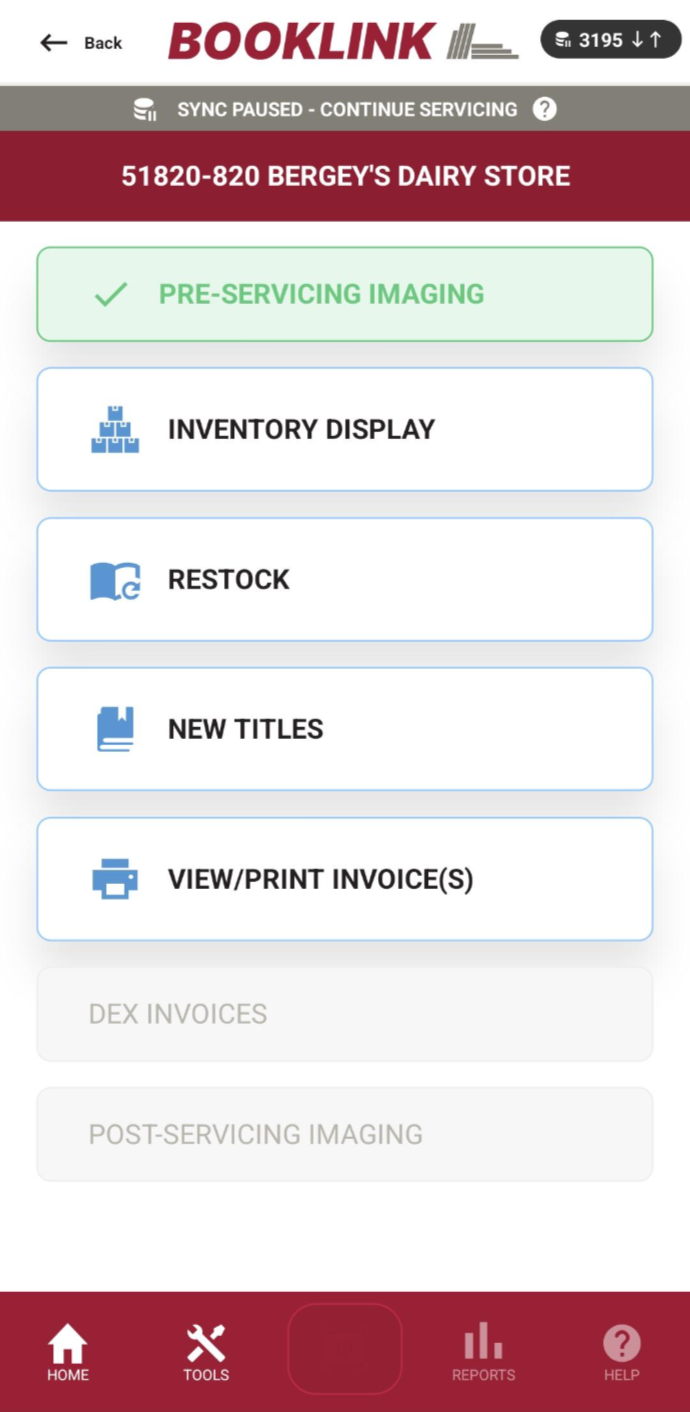
After you have taken pictures the normal servicing buttons are available to use:
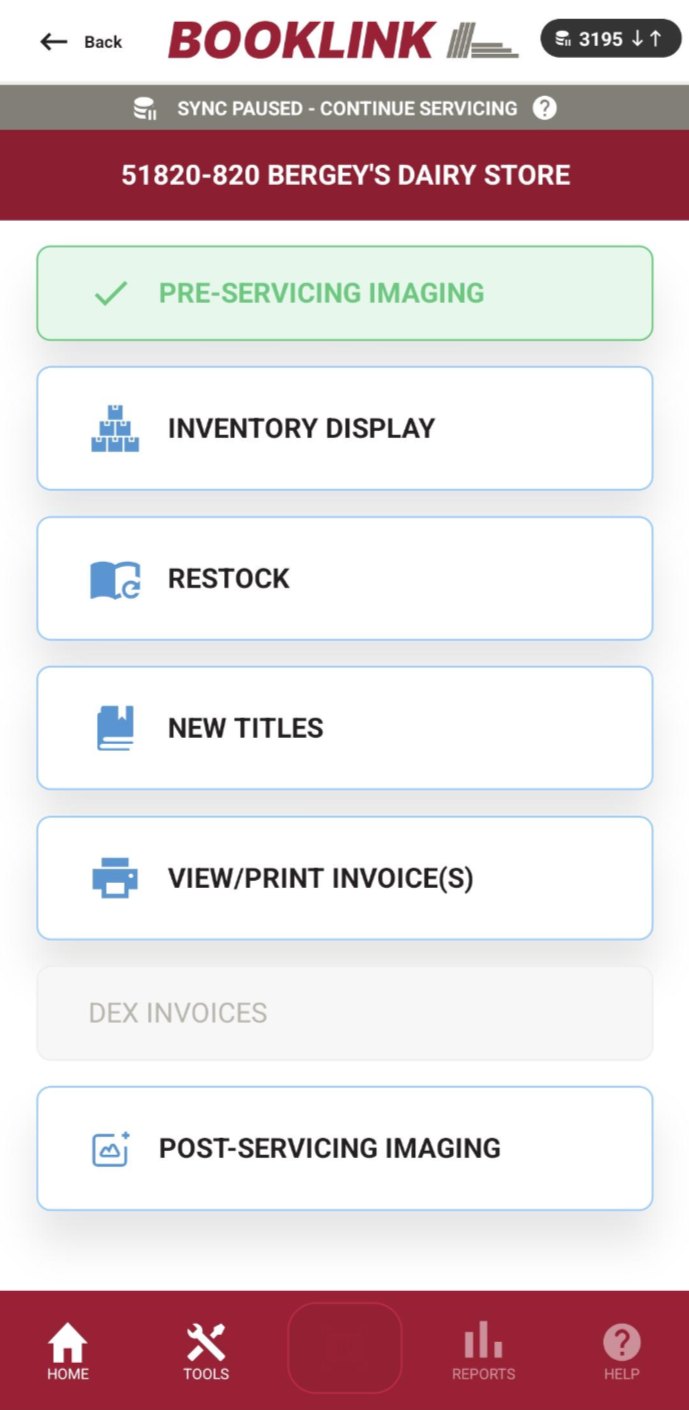
After you print an invoice* you will have the option to take ending images:
*for SBT Stores, the ending images button will be available after you have inventoried all items and displays in the store
Was this article helpful?
That’s Great!
Thank you for your feedback
Sorry! We couldn't be helpful
Thank you for your feedback
Feedback sent
We appreciate your effort and will try to fix the article